
Are you looking for a way to extend the capabilities of LLMs with your own tools? Wondering how to run an MCP (Model Context Protocol) server on the JVM and make it available directly in Copilot? Curious about how to expose custom business logic to AI models using the latest Spring AI features? If you want to see how to quickly set up such an integration and test it locally, this guide is for you.
Before you read #
The MCP protocol and the MCP server implementation in Spring AI are under development and may change in the future. Before implementing in a production environment, please refer to the latest Spring AI documentation regarding MCP.
What is MCP? #
The MCP (Model Context Protocol) is an open communication standard that enables integration of context servers with language models, supporting the exchange of data, tools, and instructions. It allows you to extend the capabilities of AI models by defining prompts, resources, and tools available to the server.
The official Model Context Protocol (MCP) documentation defines the following communication protocols and server features:
- Local standard input/output (stdio)
- Streamable HTTP (HTTP)
- Server-Sent Events (SSE) — deprecated in favor of Streamable-HTTP
- Prompts — pre-defined templates or instructions that guide language model interactions
- Resources — structured data or content that provides additional context to the model
- Tools — executable functions that allow models to perform actions or retrieve information
However, we will focus only on Tools and communication via Streamable-HTTP, which is currently recommended.
MCP Server in Kotlin #
Overall, when it comes to LLM/AI tools for JVM, there is a noticeable lag compared to Python, where there are many more libraries and solutions. For example, google-adk for Java is currently at version 0.3.0 and is not recommended for production use, while google-adk for Python is already available in version 1.16.0 and can be used in production.
At the time of publishing this article, Spring AI version 1.1.0 has been officially released and is considered stable. However, for demonstration purposes, we will still use version 1.1.0-M1 in the examples below.
Currently, one of the few available MCP server implementations in Java is provided by Spring AI,
which in its stable version (1.0.3) only supports the SSE and stdio protocols.
In contrast, in Python, the FastMCP library (version 2.0) supports Streamable-HTTP and is used in production solutions.
Spring AI offers an MCP server implementation that allows you to create, among other things, tools available to language models via various communication protocols. Unfortunately, Streamable-HTTP MCP Servers are only available in Spring AI starting from version 1.1.0-M1, which is not yet stable. Nevertheless, in this article we will use this version to demonstrate the integration.
Using the spring.ai.mcp.server.protocol configuration, you can choose one of the three available communication protocols:
- SSE — Server-Sent Events protocol for real-time updates (deprecated)
- STREAMABLE — enables MCP servers to handle multiple HTTP client connections with optional SSE streaming, replacing the SSE transport.
- STATELESS — MCP servers do not maintain session state between requests, making them suitable for simple, scalable microservices and cloud-native deployments.
Spring AI provides two MCP server implementations for JVM:
- WebMVC Server —
spring-ai-starter-mcp-server-webmvc - WebFlux Server —
spring-ai-starter-mcp-server-webflux
In our example, we will use the WebMVC implementation.
To do this, add the following dependencies to your build.gradle.kts file:
implementation(platform("org.springframework.ai:spring-ai-bom:1.1.0-M3"))
implementation("org.springframework.ai:spring-ai-model")
implementation("org.springframework.ai:spring-ai-starter-mcp-server-webmvc")
The next step is to create an MCP tool that will provide (in our case) knowledge base search functionality. We’ll be working with a notifications service as an example, which is responsible for sending various types of notifications to users.
Note: The provided prompts (descriptions and instructions) are examples and should be adapted to your own needs and application context.
Example implementation of an MCP tool for knowledge base search:
import org.springframework.ai.tool.annotation.Tool
import org.springframework.ai.tool.annotation.ToolParam

class SearchKnowledgeBaseMcpTool(private val repository: KnowledgeBaseRepository) {

    @Tool(
        name = "search_in_notifications_knowledge_base",
        description = "Performs a semantic search in the notifications knowledge base"
    )
    fun search(
        @ToolParam(description = "A clear, concise question in English") question: String
    ): String {
        return repository.search(question)
    }

}
Next, you need to register the MCP tool in the Spring configuration:
import org.springframework.ai.tool.ToolCallbackProvider
import org.springframework.ai.tool.method.MethodToolCallbackProvider
import org.springframework.context.annotation.Bean
import org.springframework.context.annotation.Configuration

@Configuration
class McpToolsConfiguration {

    @Bean
    fun searchKnowledgeBaseMcpTool(repository: KnowledgeBaseRepository): SearchKnowledgeBaseMcpTool {
        return SearchKnowledgeBaseMcpTool(repository)
    }

    @Bean
    fun searchTool(searchKnowledgeBaseMcpTool: SearchKnowledgeBaseMcpTool): ToolCallbackProvider {
        return MethodToolCallbackProvider.builder()
            .toolObjects(searchKnowledgeBaseMcpTool)
            .build()
    }

}
Finally, configure the MCP server in the application.yaml file:
spring:
  ai:
    mcp:
      server:
        name: notifications-knowledge-base
        version: 1.0.0
        instructions: "Performs a semantic search in the notifications knowledge base."
        protocol: STATELESS
        type: SYNC
        annotation-scanner:
          enabled: false
The STATELESS protocol was chosen because, in this scenario, the MCP server only exposes a tool for searching the knowledge base and does not need to maintain session state between requests.
Personally, I prefer creating configurations explicitly, which is why I disabled annotation scanning.
However, if you want to use configuration with the @McpTool and @McpToolParam annotations, you can find more information here.
After starting the application, the MCP server will be available at: http://localhost:8080/mcp.
Local Testing of MCP Server #
You can test the MCP server locally using tools like curl or MCP Inspector.
curl1 #
To retrieve the list of available tools exposed by our server, you can execute the following POST request:
curl 'http://localhost:8080/mcp' \
  -X POST \
  -H 'accept: application/json, text/event-stream' \
  -H 'Content-Type: application/json' \
  --data-binary '{
    "method": "tools/list",
    "id": 1
  }'
The response will contain the list of available tools:
{
  "jsonrpc": "2.0",
  "id": 1,
  "result": {
    "tools": [
      {
        "name": "search_in_notifications_knowledge_base",
        "description": "Performs a semantic search in the notifications knowledge base",
        "inputSchema": {
          "type": "object",
          "properties": {
            "arg0": {
              "type": "string",
              "description": "A clear, concise question in English"
            }
          },
          "required": [
            "arg0"
          ],
          "additionalProperties": false
        }
      }
    ]
  }
}
If you want to call the search_in_notifications_knowledge_base tool, you can execute the following POST request:
curl 'http://localhost:8080/mcp' \
  -X POST \
  -H 'accept: application/json, text/event-stream' \
  -H 'Content-Type: application/json' \
  --data-binary '{
    "method": "tools/call",
    "params": {
      "name": "search_in_notifications_knowledge_base",
      "arguments": {
        "arg0": "Where can I find information about notification statuses?"
      }
    },
    "id": 1
  }'
The response will contain the result of the tool execution:
{
  "jsonrpc": "2.0",
  "id": 1,
  "result": {
    "content": [
      {
        "type": "text",
        "text": "You can find information about notification statuses in the BigQuery table analytics.notifications.notification_status_change."
      }
    ],
    "isError": false
  }
}
If you want to see what the process of establishing a connection with the MCP Server looks like, you can set the logging level to DEBUG for the io.modelcontextprotocol package:
logging:
  level:
    io.modelcontextprotocol: DEBUG
The log output will look similar to this:
INFO i.m.server.McpStatelessAsyncServer       : Client initialize request - Protocol: 2025-06-18, Capabilities: ClientCapabilities[experimental=null, roots=RootCapabilities[listChanged=true], sampling=Sampling[], elicitation=Elicitation[]], Info: Implementation[name=JetBrains-IU/copilot-intellij, title=null, version=252.27397.103/1.5.59-243]
DEBUG io.modelcontextprotocol.spec.McpSchema   : Received JSON message: {"method":"initialize","params":{"protocolVersion":"2025-06-18","capabilities":{"roots":{"listChanged":true},"sampling":{},"elicitation":{}},"clientInfo":{"name":"JetBrains-IU/copilot-intellij","version":"252.27397.103/1.5.59-243","protocolVersion":"2025-06-18"}},"jsonrpc":"2.0","id":0}
DEBUG io.modelcontextprotocol.spec.McpSchema   : Received JSON message: {"method":"notifications/initialized","jsonrpc":"2.0"}
DEBUG io.modelcontextprotocol.spec.McpSchema   : Received JSON message: {"method":"tools/list","jsonrpc":"2.0","id":1}
DEBUG io.modelcontextprotocol.spec.McpSchema   : Received JSON message: {"method":"resources/list","jsonrpc":"2.0","id":2}
DEBUG io.modelcontextprotocol.spec.McpSchema   : Received JSON message: {"method":"resources/templates/list","jsonrpc":"2.0","id":3}
DEBUG io.modelcontextprotocol.spec.McpSchema   : Received JSON message: {"method":"prompts/list","jsonrpc":"2.0","id":4}
MCP Inspector #
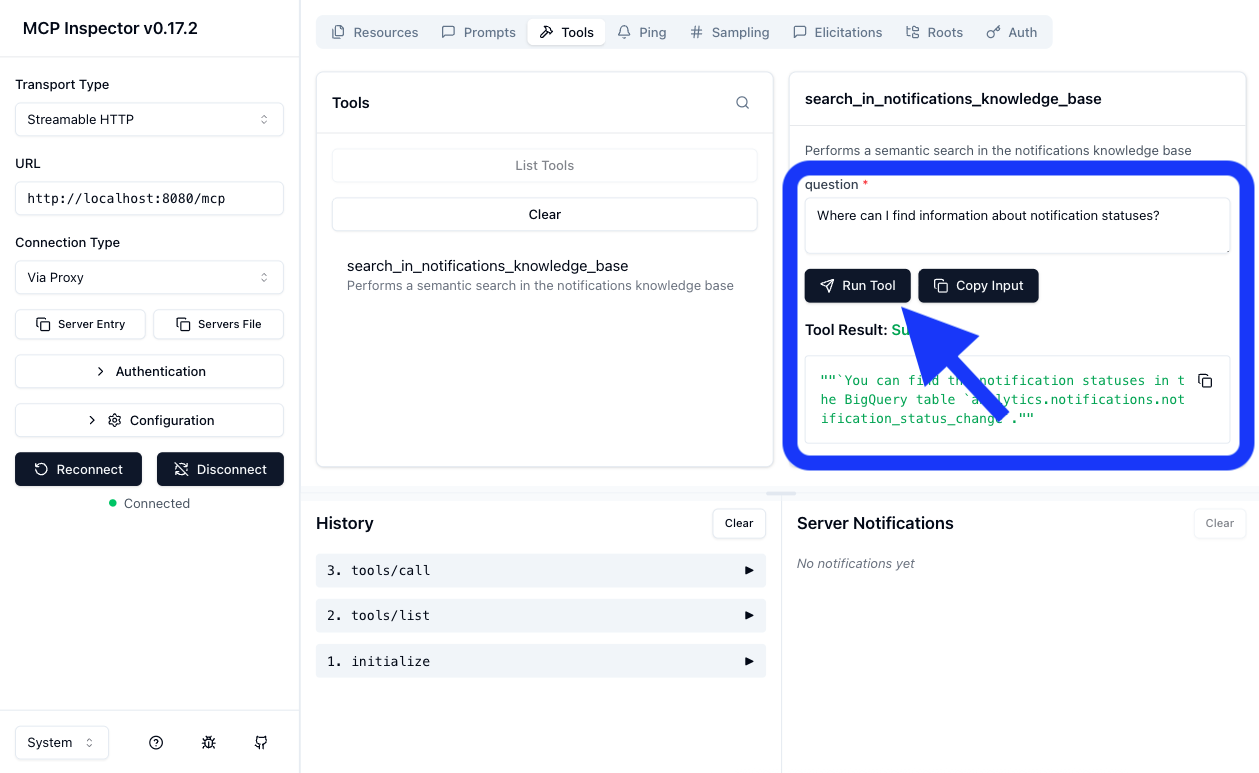
You can also use the MCP Inspector tool to test your MCP server. It provides a user-friendly interface for exploring and testing MCP servers.
npx @modelcontextprotocol/inspector
Integrating MCP Server with Copilot #
The MCP server configuration file for Copilot is located, depending on your IDE, in the following locations:
- IntelliJ IDEA:
$HOME/.config/github-copilot/intellij/mcp.json - Visual Studio Code:
.vscode/mcp.jsonOR$HOME/Library/Application Support/Code/User/mcp.json
MCP server configuration for local development environment:
{
  "servers": {
    "notifications-knowledge-base": {
      "url": "http://localhost:8080/mcp",
      "type": "http"
    }
  }
}
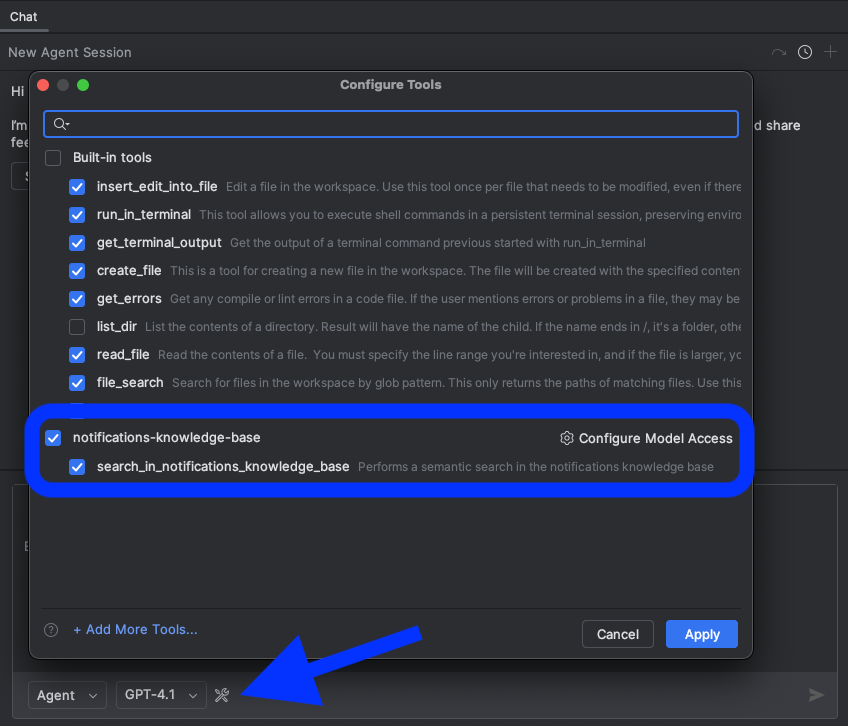
If everything is configured correctly, you should have access to the tools exposed by your MCP server in Copilot. Remember to switch to Agent mode.
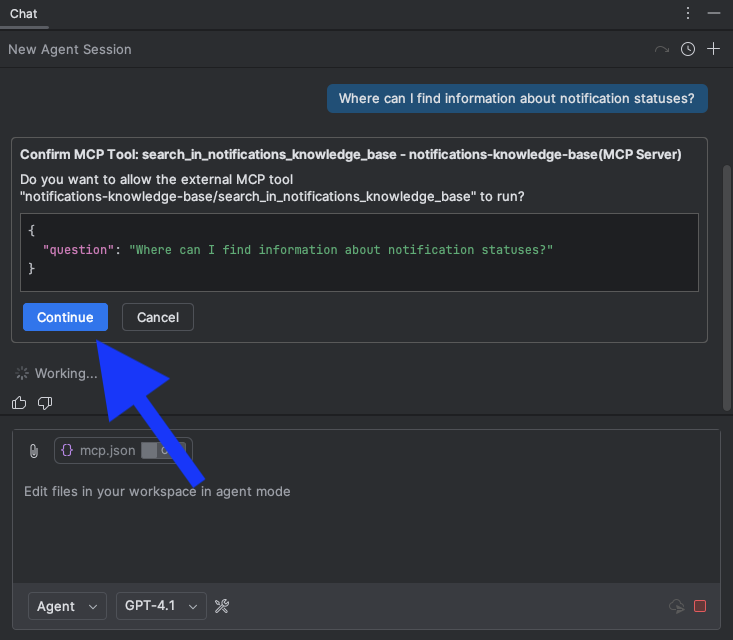
Now you can ask your question directly in Copilot, which will use the MCP server to get the answer — as long as the question relates to your tool.
For security reasons, Copilot requires manual confirmation before executing any MCP tool. Each time you invoke a tool, you will be prompted to review and approve the action.
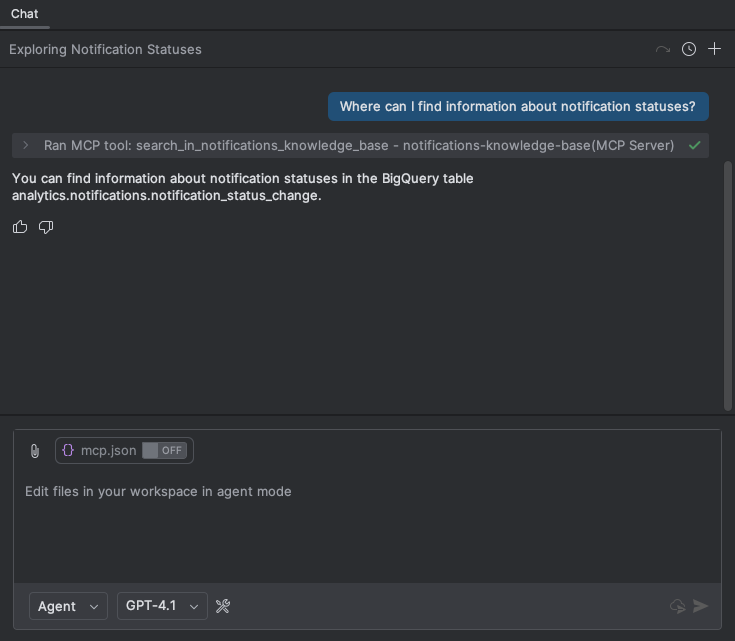
Finally, after you confirm the tool execution, Copilot will display the answer based on the data retrieved from your MCP server.
Summary #
In this guide, I showed how to run an MCP server on JVM and integrate it with Copilot. I went through the process of configuration, implementation of a sample tool, and local testing. Thanks to this, you can now provide your own AI tools that are available directly in Copilot and other systems supporting MCP. The JVM ecosystem for AI tools is still developing, but thanks to Spring AI you can already experiment and deploy your own solutions. I encourage you to continue testing, adapting prompts, and integrating with other tools to make the most of the MCP server’s capabilities in your daily work.
-
Fun fact: no LLM was able to generate a correct
curlrequest for testing the MCP server on JVM. The problem was the lack oftext/event-streamin the HTTP header. Only during debugging the connection between the MCP server and Copilot did I notice that Copilot sends an additionalaccept: text/event-streamheader, which is required for the MCP server to work correctly. ↩